BG-Map Surveying Tip
Mapping
Non-Plant Objects with the BG-Map Total Station Interface and GPS Interface
Updated
3/9/16
This
document explains how to use BG-Map for the automated mapping of non-plant
objects.
About
Non-Plant Objects
BG-Map
allows you to map certain objects other than plants using the Total Station
Interface or GPS Interface. These "Non-Plant Objects" (NPO's) are
entered into the palmtop computer or GPS data collector using codes to identify
the type of object plus a specific ID number for each object.
When
the field data is converted, the non-plant objects are automatically inserted
into the basemap.
Entering
Non-Plant Objects into the Palmtop Computer or GPS Data Collector
The
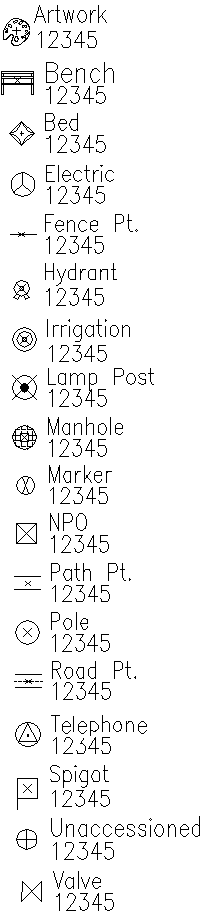
following 3-letter codes are used to identify non-plant objects:
ART Artwork, sculpture, etc.
BED Bed outlines
BEN Benches (BG-Map 2016a or later)
ELE Electrical boxes, outlets, etc.
FEN Points along a fence line
HYD Fire hydrants
IRR Irrigation devices
LAM Lampposts
MAN Manholes
MAR Ground markers, monuments
NPO General symbol for non-plant objects
PAT Points along a path
POL Utility poles
ROA Points along a road
SPI Spigots
TEL Telephone
UNA Unaccessioned Plants
VAL Valves
Each NPO is entered into using the following
format:
Code * ID Number
So, for example, to
enter a hydrant and have it identified on the map as hydrant number 12345, key
in the following into the palmtop or data collector as the plant
"Accession Number":
HYD*12345
To enter manhole
number NW27, key in:
MAN*NW27
NPO's are always
entered as "Single Plants".
Placing Non-Plant
Objects into the BaseMap
Important!
If you
are accessing your basemap through a network: Before Proceeding, make certain that
your basemap is not opened in "read-only" mode. That would prevent
you from being able to save your symbols.
It is
also a good idea to print out the raw field data containing the NPO's before
proceeding. This will provide you with a backup of their locations should
something go wrong.
Determining the
Layers on Which the Symbols Will Be Inserted
Click Tools/Options/NPO
Layers to determine which layers the NPO symbols will be inserted on. Otherwise,
all symbols will be inserted on the NPO layer by default
Uploading the Data
Upload the field data
containing the NPO's - click Field Data/Upload. Print it out as a
backup.
Make certain that
your basemap is open with read-write rights and that AutoCAD is at the Command
prompt.
Convert the field
data - Click Field Data/Convert. The NPO symbols will be automatically
inserted into the basemap. You will be prompted to save the basemap.

